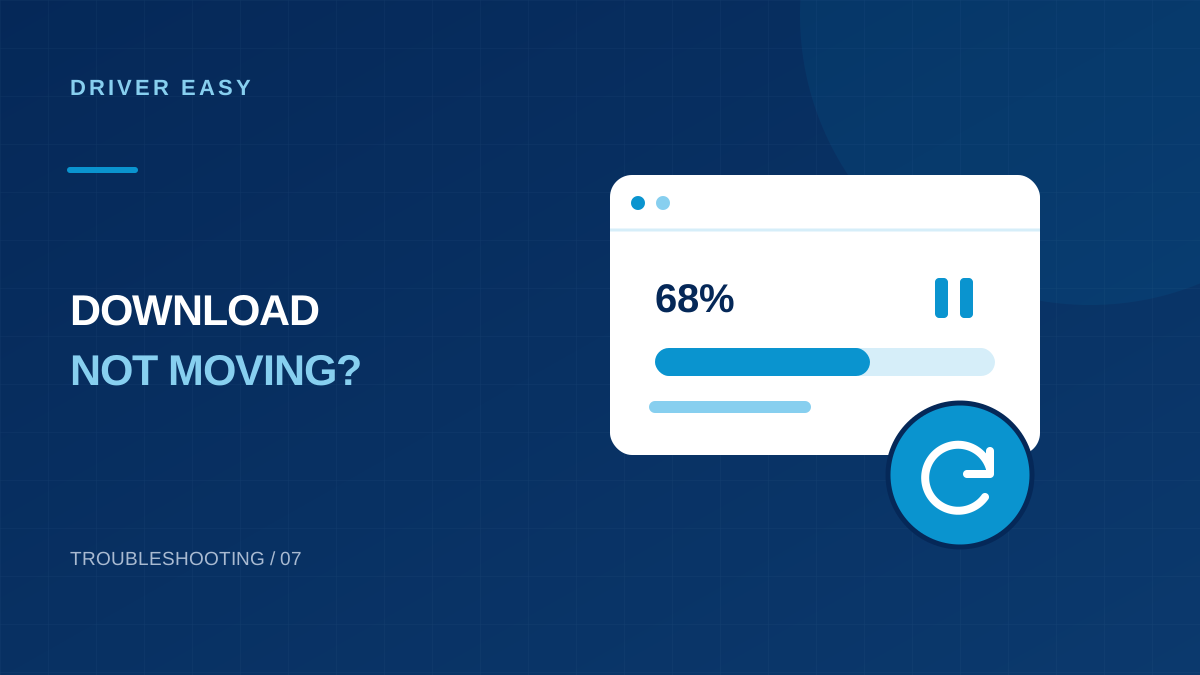
A progress bar that appears stuck does not always mean the download failed. Driver Easy may be waiting for another operation, downloading a package or installing one. Identify the current stage before closing anything: interrupting installation is a different risk from retrying an incomplete transfer.
Read the status, not just the percentage
Note the device name, package size if shown, status label and error text. Watch whether downloaded bytes or network activity change. A large package on a slow connection may move gradually; a repeated timeout gives more useful evidence than a percentage by itself.
If the label says installing, avoid force-closing the process or powering off the PC. If it says queued, check whether another device is being processed. There is no universal number of minutes after which every driver operation should be killed.
Check connectivity and available space
- Load a normal website to see whether the PC is online.
- Check that the drive used for downloads has free space.
- Check whether another large transfer is using the same connection.
- Review the app's configured proxy or VPN route if a connection error appears.
- Keep a laptop powered and prevent an accidental lid-close interruption.
Make one reversible change, then retry once and record the result. Repeatedly restarting both the computer and router makes it harder to identify which change mattered.
If the file is reported damaged
The publisher's damaged-download instructions give a targeted first step: use the three-dot menu beside the affected device, select Delete downloaded driver, run a fresh scan and retry that device.
Use this in-app action for the affected package rather than deleting Windows driver directories. A cached download and an installed driver are different objects. Do not remove unrelated system files while trying to clear one failed transfer.
If the transfer times out
Save the complete timeout text, then compare the behavior on another trusted connection if one is available and permitted. If all devices fail, investigate the connection route. If only one package fails repeatedly, report that package rather than assuming the entire PC needs repair.
A VPN may be necessary for a company network, so do not remove it blindly. Likewise, a security product's block should be investigated rather than bypassed by disabling protection. A download that only works after weakening security deserves a source check.
Check licensing errors separately
A message about expiry or unavailable downloads should be handled through the subscription or support route. Faster Wi-Fi will not repair an expired entitlement, just as a new purchase will not repair a corrupt cached file.
Read the app's subscription status and order details before deciding to renew. Never send a full license key in a public troubleshooting screenshot. If the error is ambiguous, include its exact wording in a private support request.
Use a direct package when appropriate
If you need one urgent network or audio fix, the PC or device manufacturer's support page may provide the required package directly. Match the full model and Windows system type; do not choose the first file with a similar device name.
After a successful install, restart if requested and test the original symptom. If the same hardware still fails, a completed download has only ruled out one part of the process. Record the new result before attempting further changes.
What to include in a support request
Provide the device name, installed and proposed driver versions if visible, error text, app version, whether other downloads work and what happened after clearing the affected cached package. These details let support distinguish a server-side file problem from a local network issue.
Build a short timeline of the failed operation
Write down when the operation began, which device was selected and what the status currently says. If several drivers are queued, identify the one actually being processed. A label that remains unchanged is worth investigating, but it means more when combined with an error message or an unchanged byte count. Avoid using the elapsed time alone to decide whether the application should be terminated.
Separate what you observed from what you suspect. For example, record that the transfer stopped showing progress after the laptop changed networks, rather than concluding that the server is broken. Note whether the computer slept, lost power, switched to a hotspot or displayed a permission prompt. These events can explain a transfer interruption without requiring any change to the installed driver.
Take a screenshot of the error if useful, then remove license details and personal paths before sharing it publicly. Keep the unedited information privately if official support asks for it. A clear timeline with one device and one error is easier to diagnose than a list of repeated reinstall attempts with no record of what happened during each one.
Check the download location and connection conditions
Look at the drive where the application saves packages and confirm that it is available. If you changed a destination to a removable or network drive, check whether that destination is still connected. A missing location can look like a failed transfer even though the internet connection is working. Avoid moving application folders while a package is being downloaded or installed.
Available space also matters after the download completes. An installation may need room to unpack files as well as store the original package. Review free space through Windows and remove ordinary files you no longer need, such as redundant personal downloads. Do not delete unfamiliar driver-store folders or system directories as a quick way to make room for an update.
On a metered or unreliable connection, schedule a large download when you can keep the machine connected and powered. Pause unrelated large transfers if you control them. If the network belongs to an organization, ask about restrictions instead of bypassing them. The aim is to create predictable conditions for one retry so the result tells you something useful about the original failure.
Choose a next step from the error category
A damaged-file message points toward the downloaded package, whereas an access-denied message may concern permissions or storage. A name-resolution error concerns reaching a server name, and a subscription message concerns entitlement. Preserve the actual wording and use the publisher's matching help entry. Applying the same cache cleanup to every category can waste time and erase useful evidence.
If one specific package fails while other downloads work, note that distinction. It makes a package-specific problem more plausible than a complete loss of internet access. If every online feature fails in the application, compare the configured connection route and report that broader pattern. Neither observation proves the cause, but both narrow the investigation more effectively than repeatedly restarting everything.
After one targeted change, retry the affected download and compare the result. Do not simultaneously clear the cache, reinstall the application, change networks and alter security settings. Even if that combination works, you will not know which step mattered. A short sequence of recorded checks makes a support conversation easier and reduces unnecessary changes to a computer that may otherwise be working normally.
Close the issue with a device test
When the package finally downloads, confirm whether it has also been installed. A completed transfer is one stage in the process, and the next stage may still require permission or a restart. Keep the computer on power and follow the installer prompts. If the installation reports a compatibility problem, investigate it separately instead of assuming another download will fix the mismatch.
Check the installed version through the device's Windows properties where available. Then repeat the original task, such as connecting to the usual wireless network or playing audio through the same headset. If the symptom remains, the transfer problem has been resolved but the hardware investigation continues. Keep these outcomes separate in your notes so you do not repeat a successful download unnecessarily.
Example: one package repeatedly fails
Suppose several small downloads complete but one graphics package returns the same damaged-file message. Record that distinction, clear only the affected cached download through the documented control and retry it once. If the same message returns, keep the package name, version and error for support instead of clearing unrelated system folders.
Frequently Asked Questions (FAQs)
Should I force-close Driver Easy at 99 percent?
First check whether it is downloading or installing. The percentage alone is not a safe reason to interrupt an installation.
Is deleting a downloaded driver the same as uninstalling it?
No. The documented cache action removes the downloaded update package; uninstalling an installed device driver is a separate operation.
What details should I record if a download keeps failing?
Note the package name, progress message, time of failure and whether other downloads work. Record any security alert without dismissing it. These details help distinguish a connection issue from a package-specific failure and give support a clearer starting point.
Conclusion
Resolve a stalled download by identifying the stage that has actually stopped. Check connectivity, available storage and the specific error before retrying the affected package. Treat installation as a separate stage that needs time to finish. If the same download repeatedly fails, keep the evidence and use a compatible manufacturer package where appropriate. Verify the device afterward before making further changes.