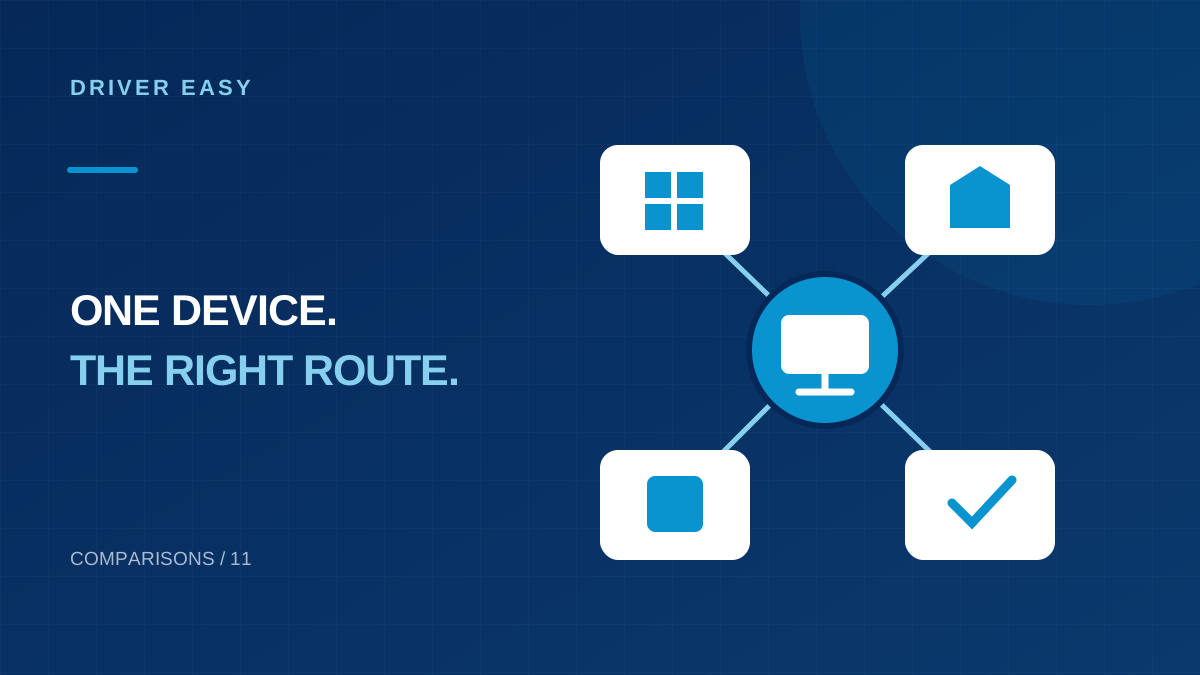
The most useful Driver Easy alternative depends on the job. Updating one laptop's audio package, getting a current graphics driver and restoring a missing network controller do not require the same workflow. Compare where the driver comes from, how you identify the hardware and how you can undo a bad change.
Start with a device and a reason
Write down the full PC model, Windows system type and the device that needs attention. Add the reason for changing it: a manufacturer advisory, a missing function, an application requirement or an error that appeared after an update.
This prevents a search for alternatives from becoming a list of unrelated utilities. If the computer is stable and no relevant change is required, leaving an optional driver alone is also a valid outcome.
Compare the main routes
| Route | Useful when | What you still need to check |
|---|---|---|
| Windows Update | You want an integrated starting point | Whether the relevant package is available |
| PC manufacturer's support | A laptop or prebuilt needs model-specific software | Exact model and Windows selection |
| Component manufacturer's package or tool | You know the GPU, network or other component | Supported device and OEM limitations |
| Manual driver package | You need a specific documented release | Hardware match, installer instructions and recovery |
| Broad driver utility | You value a consolidated workflow | Licensing, proposed matches and rollback data |
Windows Update as the first check
Microsoft's driver-update guidance explains recommended drivers and optional updates. Check Windows Update, including optional driver updates when available, before installing an extra utility for a single issue.
An empty optional list does not establish that the device is perfect or that no manufacturer package exists. It tells you that Windows is not offering one there. Continue with the affected device's support route if you still have a specific problem.
PC manufacturer support for customized hardware
For a laptop, search the maker's support site using the exact model or service identifier. Audio, touchpad, hotkey and power-management behavior can depend on the machine's overall configuration. Keep the model-specific instructions with the package.
Do not choose a package for a neighboring model simply because its name looks similar. If a support page offers multiple Windows editions or hardware variants, identify yours before downloading.
Component vendor tools and direct downloads
A component vendor can be useful when the device is clearly identified and the package explicitly supports it. Intel's OEM customization warning illustrates why generic graphics updates still need care on branded computers.
For any vendor tool, read the current supported-device information. A tool for one manufacturer's hardware is not a general replacement for managing every component in the PC. Avoid running several automatic updaters concurrently; conflicting changes make troubleshooting harder.
Choose by effort, control and recovery
For one missing driver, a direct model-specific package often gives the clearest trail. For many identified devices, a consolidated utility may reduce repetitive work, but you still need to review matches and terms. This is a workflow tradeoff, not a benchmark declaring one product universally fastest or safest.
Whichever route you choose, save the working version details, change one relevant component and verify the symptom afterward. If you cannot explain how to undo the change, prepare that option before proceeding.
Match the update route to the kind of computer
A laptop with a custom touchpad, switchable graphics and a manufacturer docking station often benefits from a model-specific support page. A desktop assembled from separately purchased parts may require a different approach, with the motherboard maker supplying chipset and network packages and the graphics vendor supplying the display driver. Start with the machine's actual hardware rather than the name of the utility you prefer.
For an external printer, scanner or drawing tablet, check whether you need more than a basic driver. Scanning controls, calibration options and device management software can be delivered in a complete manufacturer package. An update utility may identify a driver while leaving those additional applications outside its scope. Read the device maker's installation instructions before deciding that a detected driver alone meets your needs.
An office or school computer adds another consideration: who is responsible for changes. A managed update process may deliberately hold back a driver while it is tested with business applications. If you do not control that process, provide the administrator with the device model and error rather than installing a second management tool. The best alternative is the one that fits both the hardware and the way the computer is maintained.
Evaluate a manual download without guessing
On the manufacturer's support page, confirm the full model or service identifier before selecting an operating system. Similar model names can lead to different packages. Read the driver's supported hardware and installation notes, then compare them with the device shown in Windows. If the package is for another hardware revision, a newer release date does not make it a suitable replacement.
Release notes can help explain whether an update addresses your symptom. A graphics driver mentioning a particular application's display issue is more relevant than an unrelated release promising broad improvements. If the notes do not discuss your issue, that does not prove the update is useless, but it gives you less reason to expect a specific fix. Keep expectations tied to the evidence available.
Save the downloaded package somewhere recognizable and retain its source address. If the installer says the hardware is unsupported, stop and recheck the selection. Do not start modifying installation files to force a match. A successful manual workflow includes knowing why you selected the package and how you will restore the previous working arrangement if the result is worse.
Compare the time involved across realistic tasks
Consider a computer that needs one missing Ethernet driver after a clean Windows installation. If you know its model and have another connected device, downloading the manufacturer's network package may be straightforward. You can then connect the computer and continue with Windows Update. Installing an additional utility is a convenience choice rather than a requirement for obtaining that first connection.
Now consider several household PCs with different hardware and recurring driver maintenance needs. A tool that presents device information and update candidates together may reduce repetitive searching. Evaluate that convenience alongside licensing, recovery features and the need to review each proposed change. The number of updates displayed is less useful than the time saved on tasks you actually perform.
For a stable computer used for writing and browsing, frequent manual checks across every component may provide little practical value. Keep a sensible maintenance routine and investigate specific failures when they appear. A computer used for specialized audio recording, gaming or professional graphics may have different requirements. Choose the route around those requirements instead of assuming the most automated or most technical method is always best.
Keep one clear source and one measurable test
Avoid running several driver utilities at the same time. If two programs suggest different versions for the same device, compare their sources and compatibility information before choosing a package. Installing one recommendation immediately after another makes it difficult to tell which change affected the computer. Keep a record of the actual installed version, not just the list displayed by each utility.
Use the same recovery and testing habits whichever route you choose. Note the current driver, keep the last working package when available, and change one relevant device before testing. If the original issue is external-monitor flicker, use the same cable, display mode and application for the comparison. Changing the driver and replacing the cable together can improve the symptom while leaving the cause uncertain.
Example: choosing a route for external display trouble
Imagine a laptop whose built-in screen works but whose external monitor flickers through a docking station. First compare the cable, monitor mode and dock connection. Identify the laptop and dock models before selecting an update source. The laptop manufacturer's graphics and docking guidance may be more relevant than a general list of newer drivers.
Frequently Asked Questions (FAQs)
Do I need another paid updater if I remove Driver Easy?
Not necessarily. Windows and manufacturer support routes may cover your needs without a replacement subscription.
Is the driver with the newest date always best?
No. Compatibility and the reason for the update matter more than a date alone, especially on customized hardware.
How should I compare two driver sources?
Compare the supported device model, Windows version, installation instructions and recovery options. Start with the source that clearly identifies your hardware. A larger list of available updates is less useful than one compatible package that addresses the problem you actually have.
Conclusion
Choose a driver update route around your hardware and the problem you need to solve. Windows Update, the PC manufacturer and the component manufacturer each provide useful starting points. Identify the device, check compatibility and keep a recovery option before installation. Once the device works reliably, there is little value in changing packages simply to increase the number of updates installed.