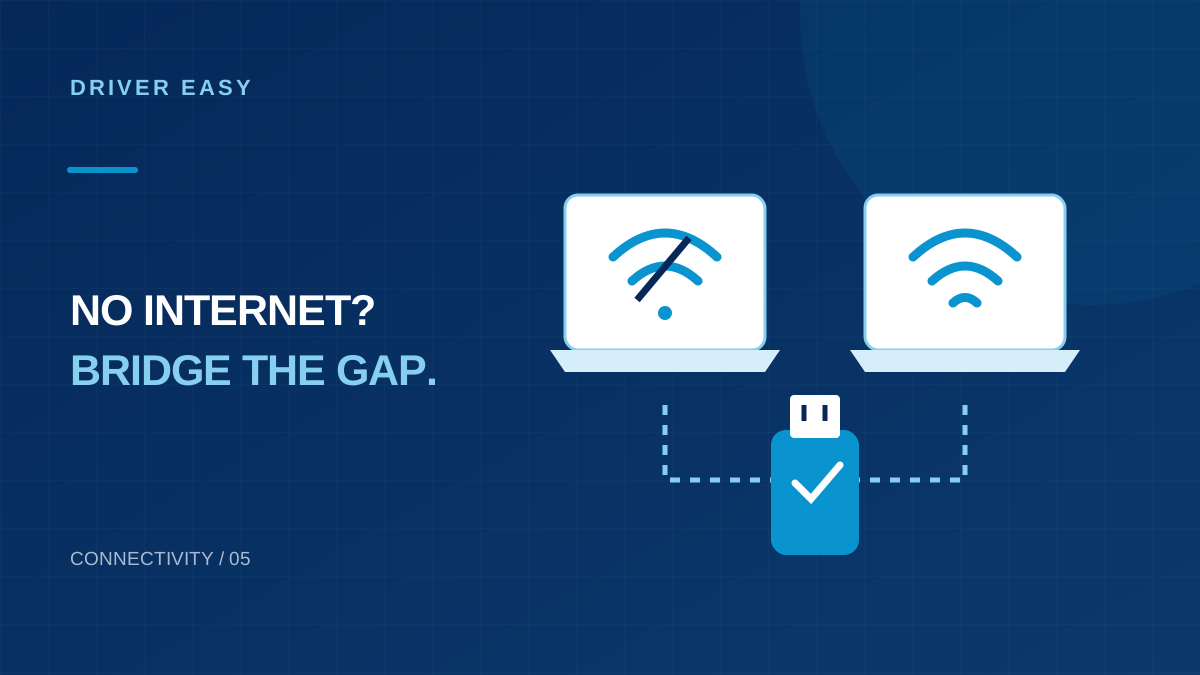
An offline PC cannot fetch a driver from the internet by itself. Driver Easy Offline Scan uses a second, connected computer to download a network driver for the machine that cannot get online. The scan file carries device information; it is not the driver package you will eventually install.
Check whether a driver is the likely problem
Before using another computer, check the simple causes: airplane mode, the Wi-Fi switch, a loose Ethernet cable and whether another device can use the same network. A missing adapter after reinstalling Windows is a different situation from an adapter that sees networks but rejects one password.
If the router is offline for every device, downloading an adapter driver is unlikely to restore the internet service. If Device Manager shows an unknown network controller after a fresh setup, an offline driver search is a more relevant next step.
Prepare both computers
- The affected Windows PC, with Driver Easy installed or its installer transferred from a trusted source.
- A second Windows computer with internet access and Driver Easy available.
- A USB drive or another approved transfer method.
- The affected PC's model and Windows system type.
Use a clearly named folder for this repair so you do not confuse the scan report, installer and downloaded driver. If either machine belongs to an organization, use its approved software and file-transfer process.
Export, download and transfer
- On the offline PC, open Tools > Offline Scan and choose the first scan step.
- Save the result, then copy that scan file to the online PC.
- On the online PC, open Offline Scan and choose the upload or second-step option.
- Select the exported report and download the matching network driver.
- Copy the actual downloaded driver package back to the offline PC.
This is the workflow in the publisher's Offline Scan manual. Some text in that manual refers to the legacy Free edition; verify current access conditions in your app instead of assuming those older license details apply.
Install the package you brought back
If the download is an executable installer, run it only after checking that it is the expected network package. If it is a ZIP archive, extract it first. For an INF-based package, use Device Manager's Update driver > Browse my computer option and select the extracted folder.
Follow the device manufacturer's readme if the package includes one. Do not point Windows at an unrelated driver folder or force a mismatched package because it has a similar adapter name. Reboot if the installer requests it.
Test the repaired connection
Check whether the adapter is now present and enabled. Reconnect to a known network, then test an ordinary website. An installed Ethernet controller does not repair a separate Wi-Fi adapter, and successfully joining Wi-Fi does not prove the router has an internet connection.
Once online, save a copy of the working driver for future recovery. Run a fresh scan only if needed; this process is intended to restore connectivity, not to justify changing every other driver on the machine.
When the workflow does not find a usable driver
Use the PC manufacturer's support site on the online machine and search by full model or service identifier. Confirm Windows version and architecture before transferring its network package. If the adapter is disabled in firmware or physically faulty, a driver download will not solve that condition.
Keep the exact failure message. Distinguish an unreadable scan report from a failed download or rejected installation; each occurs at a different stage. A report successfully uploaded on the second computer does not mean the final driver has already reached the offline PC.
Distinguish a missing driver from other network problems
An offline workflow is most helpful when the affected computer cannot obtain a needed network driver through its own connection. Before transferring files, check the ordinary physical conditions. Make sure an Ethernet cable is connected, the wireless function is enabled and the intended access point is available. Compare another device on the same network to see whether the outage affects only the computer you are repairing.
Open Device Manager and look at the network hardware information Windows currently provides. Record an unidentified device, warning symbol or error text if present. If the adapter is recognized and connected but websites do not load, the cause may involve the router, sign-in page or connection settings rather than a missing driver. An offline scan should support a diagnosis instead of replacing these basic distinctions.
If you have a temporary supported connection available, such as Ethernet on a laptop with failing Wi-Fi, consider whether it gives you a simpler route to the manufacturer's support page. Do not assume every disconnected PC needs a multi-computer transfer. Choose the method that gets the correct package to the correct machine with the fewest uncertain steps.
Keep the two computers and their files clearly separated
Label your working folders so you can identify the affected computer and the connected helper computer. Include the target PC's model and the date in the folder name. If you help several people, this prevents scan records from different machines becoming mixed together. The important hardware information comes from the disconnected target, not from whichever computer happens to have internet access.
Use removable storage with enough room for the exported information and downloaded packages. Avoid putting an entire collection of unrelated installers in the same folder. A short note identifying the selected adapter and target Windows system type makes the return trip easier. Keep the original export until the target connection works, so you can revisit the selection if the first package is unsuitable.
When transferring files, allow the copy to finish before removing the drive. Check that the destination contains the expected package rather than a shortcut to its location on the helper computer. If either machine reports a security warning, investigate the specific file and source. File transfer should not require disabling security protection or copying private documents from the machine you are repairing.
Confirm the package belongs to the disconnected machine
The helper computer may have a completely different processor, Windows installation and network adapter. Its own recommended drivers are not useful merely because it shares the same laptop brand. Match the returned package with the information collected from the target PC. Where several adapters have similar names, compare the exact model or hardware details instead of choosing the newest-looking item.
Read any installation requirements supplied with the package. Some devices rely on additional manufacturer components or an installation sequence, particularly after a clean Windows setup. If the installer rejects the target hardware, save the message and revisit the device identification. Repeatedly trying drivers from neighboring models is a poor substitute for confirming which adapter is actually fitted.
Keep a manufacturer support route available as an alternative. A direct model-specific network package may help if the offline workflow cannot produce an appropriate result. Download it on the connected computer, preserve the source address and transfer it deliberately. You do not have to obtain every driver in one trip; restoring one reliable connection can make the remaining investigation much simpler.
Test connectivity in stages after installation
After installing the selected driver and restarting when requested, first check whether Windows recognizes the adapter without the previous device error. Then connect to the intended network. For Ethernet, confirm the cable and port remain connected; for Wi-Fi, choose the correct network and enter credentials through Windows. A recognized adapter and an authenticated network connection are separate milestones.
Next, try an ordinary website and any sign-in page required by that network. If the computer connects locally but cannot reach the internet, compare another device and inspect the router or provider status. Do not immediately reinstall the network driver just because the first browser request fails. The driver repair may have succeeded while a different part of the connection still needs attention.
Keep a small offline recovery kit afterward
Once the connection works, keep the successful network package, its source address and a note of the target computer model on accessible storage. Label the Windows system type and installed driver version too. You do not need a large collection of every possible network driver; the verified package for your actual machine is the useful starting point.
Frequently Asked Questions (FAQs)
Does Offline Scan work with no internet anywhere?
It can collect information on the affected PC, but a second computer still needs internet access to download a package.
Is this the same as Microsoft Defender Offline?
No. Driver Easy Offline Scan is a network-driver transfer workflow. Microsoft Defender Offline is a separate security feature.
What should I keep on the USB drive after the repair?
Keep the working network driver, the target computer model and a note of the Windows system type. Preserve the source address where possible. Label everything clearly so the package is not mistaken for a universal driver for other computers.
Conclusion
An offline repair needs accurate information from the disconnected PC, an online download source and a reliable way to transfer the matching package. Keep the scan report separate from the actual driver installer. After installation, verify adapter recognition, network access and internet connectivity in stages. Save the successful package for future recovery, and investigate other network causes if the driver installs but the connection still fails.