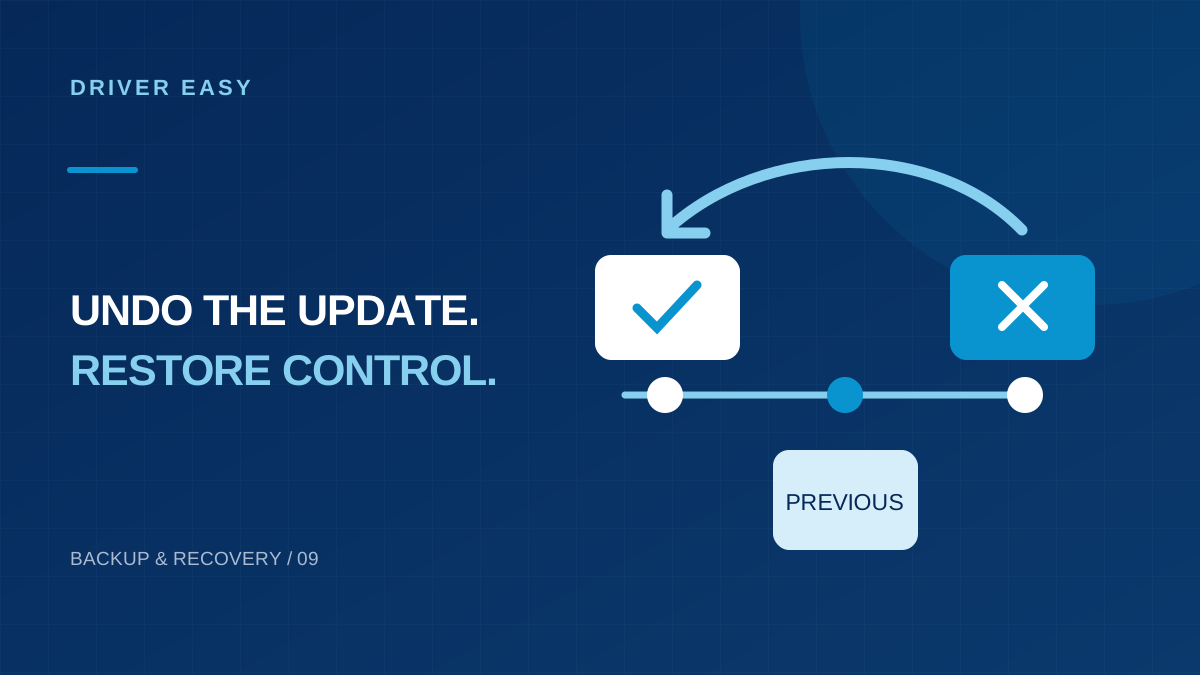
If sound, networking or another device stopped working immediately after a driver update, undoing the relevant change is often a better next investigation than installing more updates. Driver Easy rollback options depend on what was saved. Begin by identifying the device and update that match the timing of the problem.
Identify the change before undoing it
Record when the problem began, the device affected and which drivers changed during that session. If several packages were installed, investigate the component related to the symptom first. A missing microphone does not justify rolling back a storage controller at random.
Save work and keep the PC on power. If you can still use Windows, preserve the error message and current version details before recovery. A clear before-and-after record helps distinguish a driver regression from an unrelated app setting.
Use Driver Recovery when a record exists
The Driver Recovery manual describes Tools > Driver Recovery for changes recorded from version 7.2.0 onward. Select the affected entries, review the chosen drivers and start recovery. Restart when required.
If no entry appears, check whether recovery was enabled for that update. A feature introduced in a newer release cannot retrospectively create a recovery record for an older change. Do not delete stored recovery data while deciding what to restore.
Use Windows Device Manager when available
- Right-click Start and open Device Manager.
- Expand the affected device category and open the correct device's Properties.
- Open the Driver tab and choose Roll Back Driver if it is available.
- Complete the reason prompt, confirm and restart if requested.
Microsoft documents this administrator-level operation in its driver update and rollback instructions. Select the actual affected device, particularly when multiple audio or network devices appear.
If Roll Back Driver is unavailable
The button may be disabled when Windows has no previous package available for that device. Check for a usable manual backup or obtain the known-working package from the PC manufacturer. A package on a random archive site is not a reliable substitute.
Do not force a driver with an unrelated hardware identifier. If the manufacturer provides a model-specific installer, read its instructions before replacing the current package. Removing every driver in the category is an unnecessarily broad way to recover one device.
If Windows no longer starts normally
Use Microsoft's System Restore guidance to evaluate a restore point from before the change. Windows Recovery Environment offers System Restore under its troubleshooting options; an encrypted device may require the BitLocker recovery key.
On a managed computer, involve the administrator before recovery. If there is no usable restore point or you cannot access encrypted data, stop and choose an appropriate supported recovery path. Do not jump straight to a reset that may remove applications or files.
Confirm the old problem is fixed
After recovery, check which driver version Windows loaded and repeat the same real-world test: play audio, reconnect the headset or resume from sleep. Keep a short note of the result.
A fresh scan may offer the same update again. Do not reinstall it immediately just to clear the list. Review why it was unsuitable and use the app's documented hide-update control if appropriate. If the symptom remains on the known-working driver, investigate hardware, application settings or other recent changes.
Create a timeline before choosing what to reverse
Start with the last point at which the device worked correctly. Record the driver change, any Windows updates and other changes made afterward. If several devices were updated together, use the installation history and your own notes to narrow the candidates. The most recent event is worth investigating, but timing alone does not prove that a particular driver caused the new symptom.
Describe the failure precisely. A display that flickers only through one docking station suggests a different investigation from a computer that cannot start normally. Audio routed to an unexpected output may need a settings check rather than a rollback. Confirm cables, device selection and power before reversing software. These quick observations can save you from undoing a useful update for an unrelated reason.
If the device is still usable, collect its current driver version before taking recovery action. Keep the previous version information if available. This lets you confirm later that the intended change actually occurred. Without that comparison, a failed restore and a successful restore with an unchanged symptom can look identical, even though they lead to different next steps.
Choose the narrowest recovery that fits the failure
A problem isolated to one device usually calls for investigating that device first. Returning a single driver to a known working version creates a clearer comparison than reversing several unrelated system changes. Review the recovery record and confirm that it corresponds to the affected hardware. Do not select a record solely because it is the newest item in the list.
A saved manufacturer package can provide another route when the previous driver is not retained by Windows or the application. Confirm that it supports the exact computer and Windows installation before running it. Some installers may require their own removal or replacement sequence, so read the accompanying instructions. Avoid deleting driver files manually in an attempt to make an older installer accept the device.
Broader recovery methods need separate consideration because they may affect applications and settings beyond one driver. If you are unsure what a recovery option will change, read its description and check the available record before proceeding. Keep personal files backed up independently. A driver rollback plan is more useful when you understand both its intended scope and the limits of what it can restore.
Prepare for recovery when the affected device is essential
If the network adapter is failing, obtain the intended replacement package before removing the current driver. If the display is unstable, write down the recovery steps while the screen is usable and consider whether you need help navigating them. Do not make the computer harder to operate before confirming that you have the files and access needed for the next step.
On a laptop, keep power connected and save open work. Where a restart is required, allow it to complete instead of interrupting it because the screen takes longer than usual to return. If Windows cannot start normally, follow Microsoft's documented recovery guidance or seek appropriate support rather than repeatedly forcing power cycles. Recovery becomes more difficult when new interruptions are added to the original fault.
For a work computer, involve the administrator before replacing centrally managed drivers. They may need to compare the failure with other machines or preserve a tested version for your applications. Provide the device name, current version and symptom timeline. Those details let them act on the actual change rather than treating the entire computer as an unspecified update failure.
Confirm the rollback and keep the result stable
After recovery, inspect the installed version and compare it with the version you intended to restore. Then repeat the same test that exposed the problem. If an external monitor failed after an update, use the same monitor, cable and display mode. A different setup may hide the failure without demonstrating that the rollback fixed the original configuration.
Check related behavior during normal use, including sleep and wake where relevant. A quick successful test is useful, but some problems only appear after reconnecting a peripheral or running an application for a while. Record what you tested and keep the working package available. If the symptom remains despite a confirmed version change, investigate other causes rather than repeatedly restoring the same driver.
Example: recovering audio after an update
Suppose sound stops immediately after an audio driver change. First check the selected output and test the same speakers or headset. If the output is correct and the problem remains, record the new driver version and identify the previous working record. Restore that relevant driver through an available supported route and restart if requested.
Frequently Asked Questions (FAQs)
Does uninstalling Driver Easy undo the updates it installed?
Do not use app removal as a rollback method. Recover the affected driver through the appropriate recovery tool before removing the utility if needed.
Can I recover every update from Driver Recovery?
Only changes with usable recorded recovery data are candidates. Check the app's records rather than assuming every historical change is covered.
How do I know whether rollback helped?
Repeat the task that failed after the update and check the affected device after a restart. Record the restored driver version and the result. If the symptom remains, pause further changes and review other possible causes rather than repeatedly switching versions.
Conclusion
Recover from a problematic driver update by identifying the affected device and the last working configuration. Use the available recovery record or a compatible previous package, then test the original problem. Removing the updater is a separate task and should not replace driver recovery. Keep a record of the version that works so you can assess future update offers with a clear reference point.