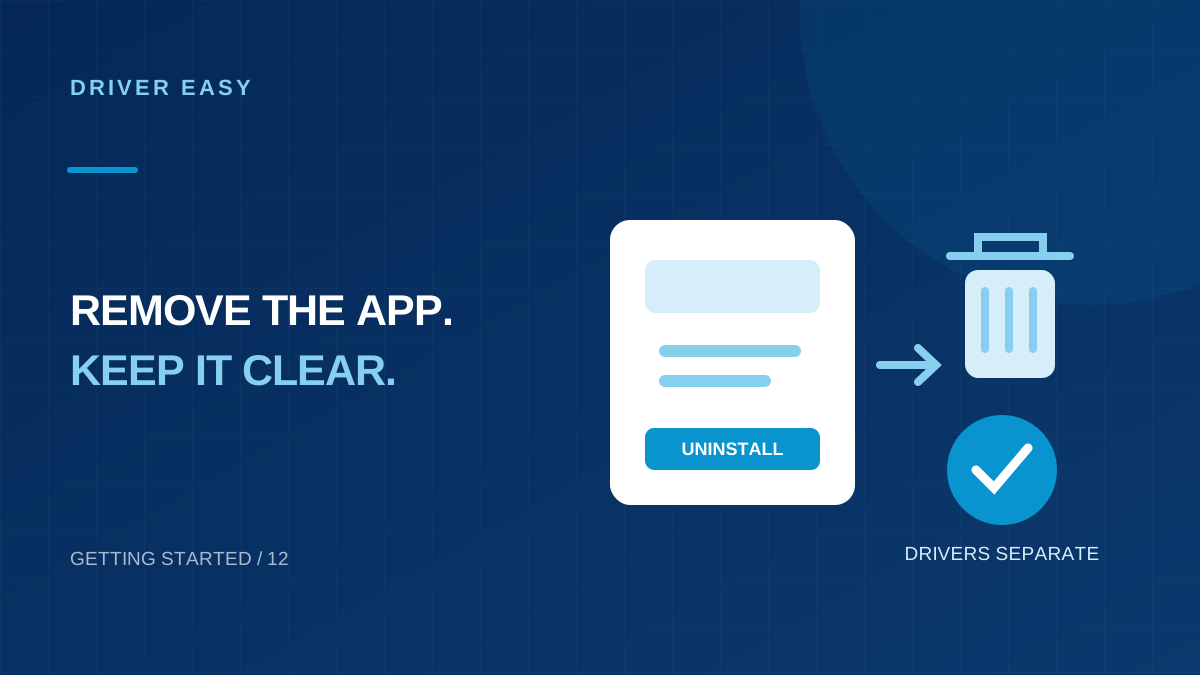
Uninstalling Driver Easy removes the utility. It should not be used as a substitute for undoing a driver update or cancelling a subscription. Before removal, decide which of those tasks you actually need, especially if you recently changed a driver and may want a working recovery copy.
Three separate tasks to keep straight
| Your goal | Action to take |
|---|---|
| Stop using the utility | Uninstall the Driver Easy application |
| Undo a problematic device update | Use a suitable driver recovery or rollback route |
| Stop another subscription payment | Submit cancellation through the documented billing process |
Complete a needed recovery before discarding the tool or files that make that recovery possible. Keep an order or cancellation record separately from installation files.
Prepare for removal
Finish any active driver installation and save your work. If a newly updated device is failing, investigate rollback first. Record the current app version, keep any backup you intend to use and decide whether the recovery files can be removed.
Do not start by deleting the program folder. That can leave an application entry behind without running the normal uninstall process. Windows includes supported removal controls for this purpose.
Uninstall through Windows
- Close Driver Easy.
- On Windows 11, open Settings > Apps > Installed apps and find Driver Easy.
- Use its menu to choose Uninstall and follow the program's prompts.
- If the uninstaller asks about recovery data, choose deliberately whether to keep it.
- Let the process finish and restart only if requested.
Microsoft explains the Settings and Control Panel routes in its app removal instructions. The publisher's uninstall manual also describes using Programs and Features and choosing whether to retain recovery data.
Choose what happens to recovery data
If you are still testing a driver update or may reinstall the app for recovery, retain the necessary files and note their location. If the PC is stable and you have decided they are no longer needed, use the uninstaller's documented cleanup choice.
Do not delete the Windows DriverStore or random system directories to make the removal feel more complete. Installed hardware drivers belong to a different part of Windows than the updater application.
Handle renewal if that is your goal
Use the cancellation route in the official subscription FAQ and keep its confirmation. Removing an application locally does not send a cancellation request to a payment provider.
If a charge has already occurred, check the refund process separately. Review the order email and contact the official billing channel with the order reference. Do not publish license keys or payment details while asking for help.
Confirm removal and continue maintenance
Check the installed-app list and Start menu. A downloaded installer left in Downloads is not evidence that the application is still installed. Likewise, a driver continuing to operate is expected and does not mean the utility's uninstall failed.
For future maintenance, use Windows Update or the PC maker's support page for a known device issue. You do not need to install another broad updater immediately just because you removed this one.
If the uninstaller fails
Record the exact message, close any running instance and try the supported Windows removal route again after a normal restart if appropriate. Avoid registry cleaners or manual system-file deletion as the first response. Consult the publisher or Microsoft's app-removal guidance with the error details if the entry remains.
Decide what you want to remove before starting
Write down your intended outcome in ordinary terms. You might want to remove an unused application, undo a driver that caused trouble or stop a future subscription renewal. These tasks can occur together, but each needs its own completion check. Removing the application from Windows is evidence about installed software, not a complete record of what happened to drivers or billing.
If a recent update caused a device failure, investigate recovery before removing access to the application's records. Note the current driver version and identify any relevant backup. You may decide that Windows or a saved manufacturer package offers the better recovery route, but make that choice deliberately. Uninstalling first and looking for lost recovery information afterward can add an avoidable complication.
If your only goal is to reduce startup activity or reminders, review the application's available preferences before deciding whether complete removal is necessary. Conversely, if you no longer want the program, use the normal Windows uninstall workflow. A clear goal makes it easier to assess the result and prevents you from treating every remaining driver entry or downloaded file as an uninstall failure.
Preserve useful information without retaining everything
Before removal, keep the computer model, relevant driver versions and source addresses for packages that solved a real problem. Save any recovery copy you intentionally want to retain in an understandable location. An installation note or manufacturer package can remain useful even when the driver utility is no longer part of your maintenance routine.
Keep purchase and cancellation records separately from technical backups. The receipt helps with account questions, while a driver archive helps restore hardware. Neither substitutes for the other. Store license details privately, and avoid placing a full key in a shared folder or screenshot merely to remember that the application was installed. A short description and order reference are usually more useful for your own records.
Do not preserve every temporary download automatically. Identify which packages belong to the working configuration and which are incomplete or redundant. If you are unsure what an application-managed folder contains, inspect the documented storage location before deleting it. The aim is a small, understandable recovery collection that you can use later, rather than a large pile of files with no connection to particular devices.
Confirm removal through normal Windows controls
Let any active driver installation finish before beginning the uninstall process. Close the application, open the installed-apps view in Windows and select the intended program. Read the uninstall prompts carefully, especially where they discuss retained data. If Windows requests permission, use an authorized administrator account rather than attempting to remove protected files by hand.
When the process completes, check the installed-apps list again and restart if requested. A downloaded installer remaining in your Downloads folder does not mean the application is still installed. Likewise, a driver entry remaining in Device Manager is not automatically an application remnant. Distinguish the setup file, the driver utility and the device's installed driver when interpreting what remains.
If the uninstall fails, keep the exact message and check whether the program is still running or another setup operation is active. Use the publisher's documented assistance or Windows troubleshooting guidance for the specific problem. Avoid registry cleaners and broad manual folder deletion as your first response. Those actions can obscure the original failure while leaving the normal uninstall registration unresolved.
Continue device maintenance after removing the utility
Test the hardware you use regularly after removal. Check your network connection, audio devices and any peripherals involved in the original maintenance task. If a driver was already causing trouble, handle that issue separately through the appropriate recovery route. The presence or absence of the utility alone does not tell you whether the installed device package is suitable.
Choose a maintenance route you understand for the future. Windows Update and the computer or device manufacturer's support page can provide relevant packages, but you still need to match the exact hardware and review installation requirements. Keep your known working version information so you can compare a later update. There is no need to replace the utility immediately with several competing driver programs.
Finally, verify subscription status through the documented account process if stopping renewal was part of your goal. Retain the confirmation and the date alongside your purchase record. Then close the task with separate notes: the application was removed, any driver recovery was tested and any billing request was confirmed. Those concrete checks make the outcome easy to understand without confusing three different kinds of change.
Example: removing the application after one repair
Suppose you used the utility to restore a network connection and no longer need it installed. Record the working driver version and retain a suitable recovery package first. Remove the application through Windows, then confirm that your connection still works after any requested restart. The device driver and the management application have separate roles.
Frequently Asked Questions (FAQs)
Will removing Driver Easy restore the previous driver?
Treat rollback as a separate task. Use the appropriate recovery mechanism for the affected device rather than relying on application removal.
Does deleting a desktop shortcut uninstall the program?
No. Use Windows' installed-app or Programs and Features controls to run the uninstaller.
What should I check after uninstalling the application?
Confirm that the app no longer appears in Windows installed apps and test the devices you use regularly. Keep any driver recovery files you still need. If you had a subscription, review its billing status separately rather than assuming software removal changed the payment arrangement.
Conclusion
Remove Driver Easy through the Windows application uninstall controls and follow the prompts to completion. Test your important devices afterward and keep recovery files that remain useful. Handle a faulty driver through a separate rollback process, and review any subscription independently. This gives you a clear outcome: the application is removed, hardware behavior is checked and any remaining recovery or billing task is identified.